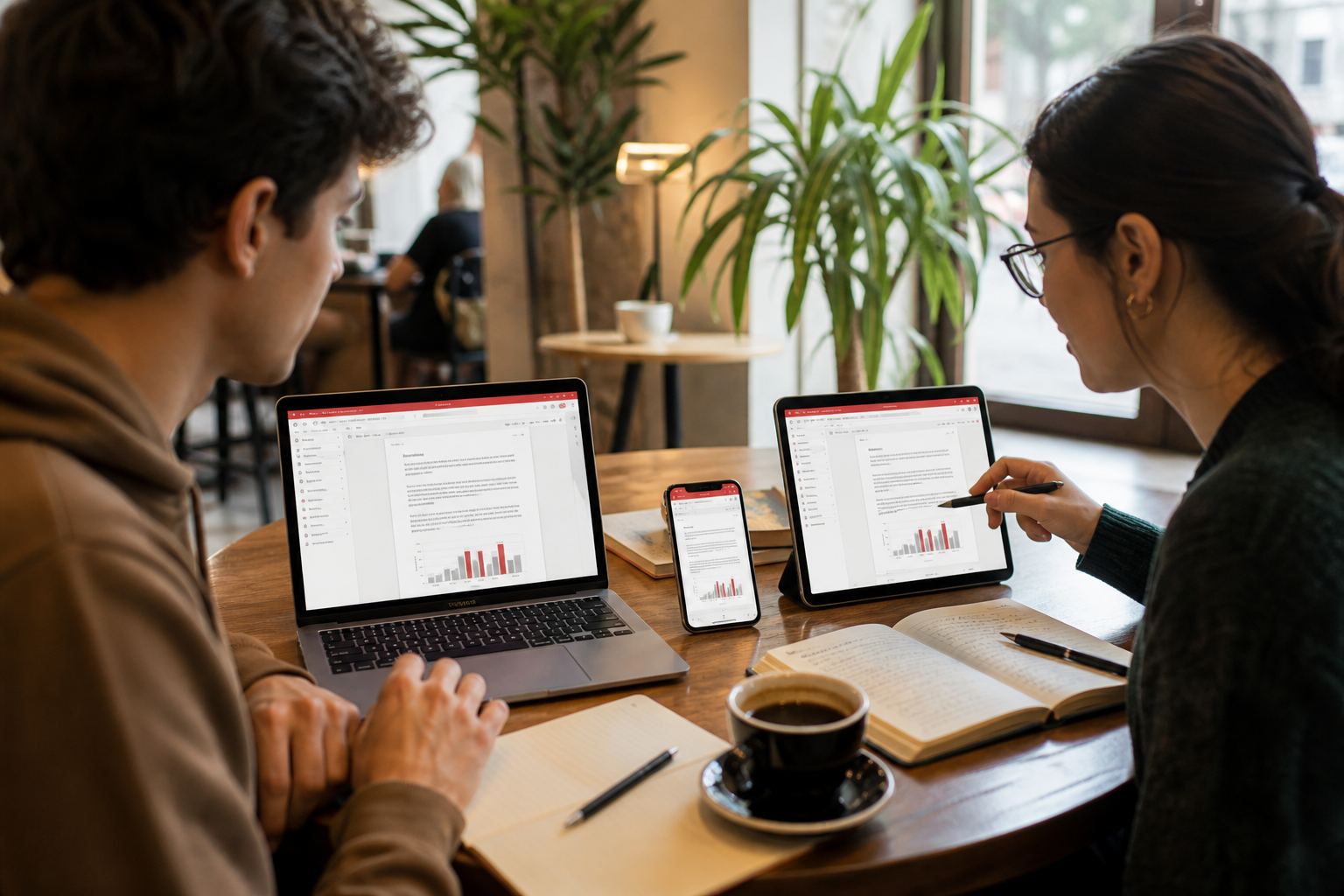
Happy path
- Install official builds on each device (download map).
- Sign in with the same WPS account.
- Save the file to WPS Cloud, not only to Desktop.
- Confirm the upload indicator finished.
- Open Cloud on the phone — pull to refresh once.
Quota
Free cloud is small (about 1 GB on public comparison tables). A folder of photographed PDFs will fill it. Move archives to Google Drive / Dropbox via the built-in connectors, or upgrade Premium for ~20 GB.
Two accounts
Work Google on the phone and personal WPS on the PC will never meet. Pick one identity for roaming files.
Linux USB / second disk
Snap users: sudo snap connect wps-office:removable-media. Deb users: check folder permissions. This looks like “sync is broken” when the file never lived in Cloud at all.
Conflict copies
If two devices edit offline, you may see duplicates. Keep the larger file, diff carefully, and delete the ghost after you verify. Real-time co-edit needs both sides online in a shared Cloud doc.
Background: Cloud chapter.
Pick one live folder
WPS Cloud plus Drive plus Dropbox on the same tree is how conflict copies breed. Drive apps.